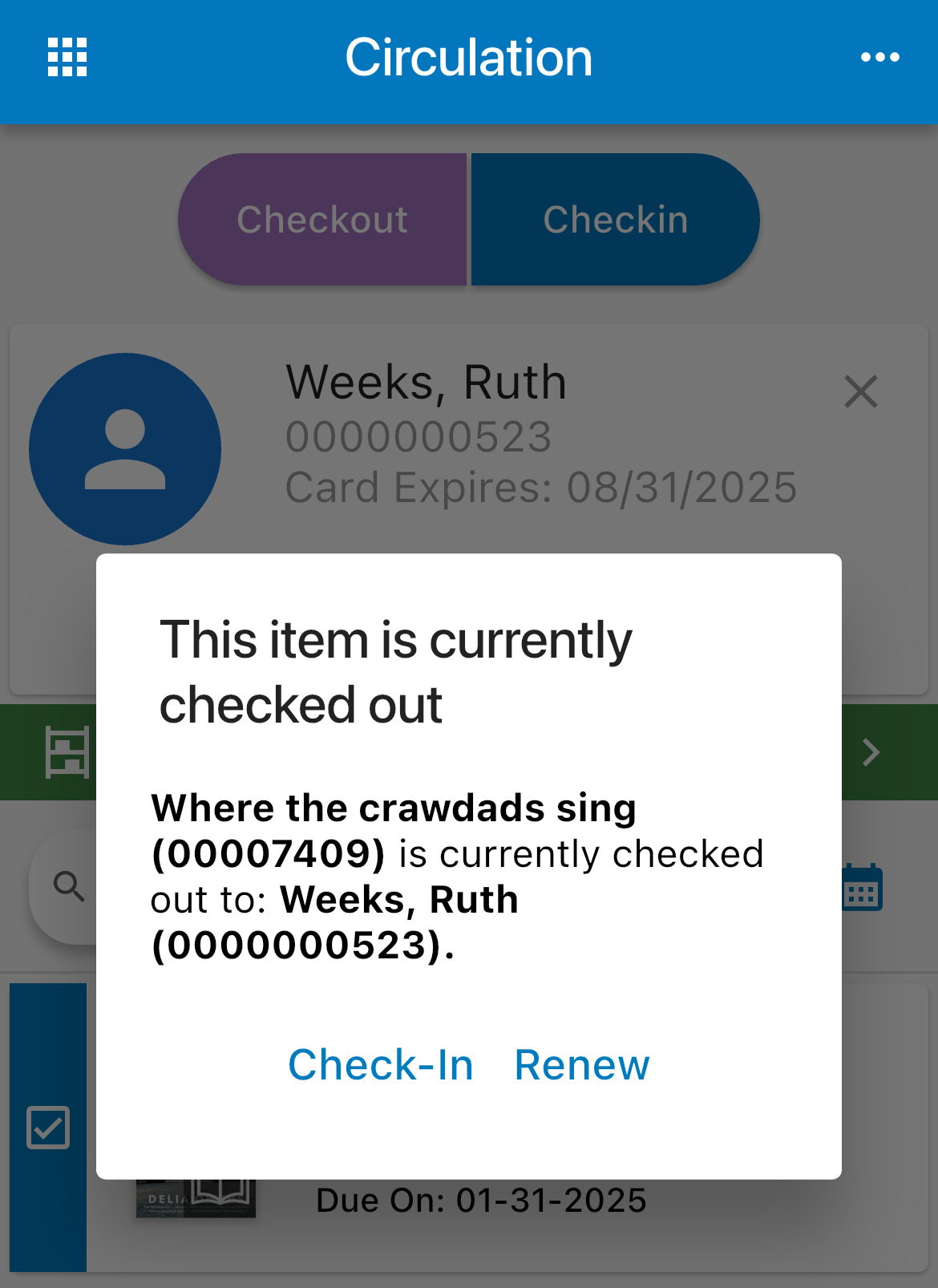
Check Out
Open the Circ screen.

If you need to assign a special due date, select the calendar next to the search field and choose a day.
Use one of the following methods to check out items:
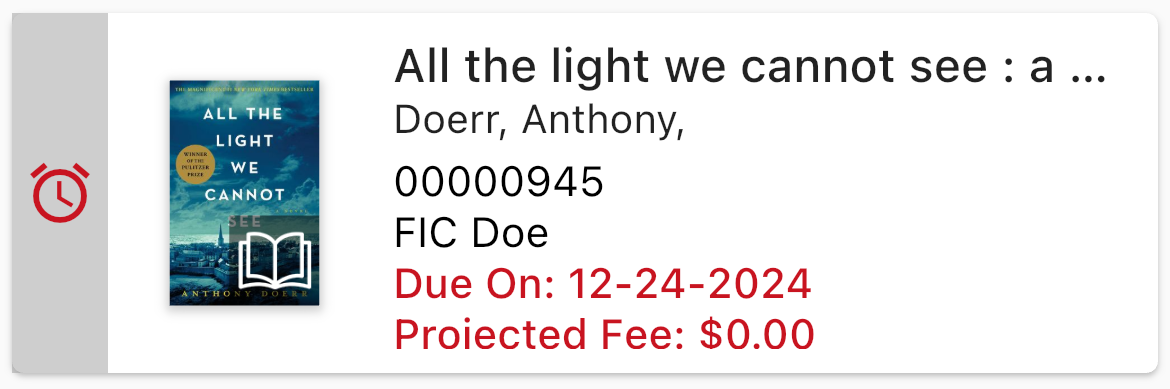
Scanner - Scan the patron barcode and then the item barcodes. Check out results automatically display.
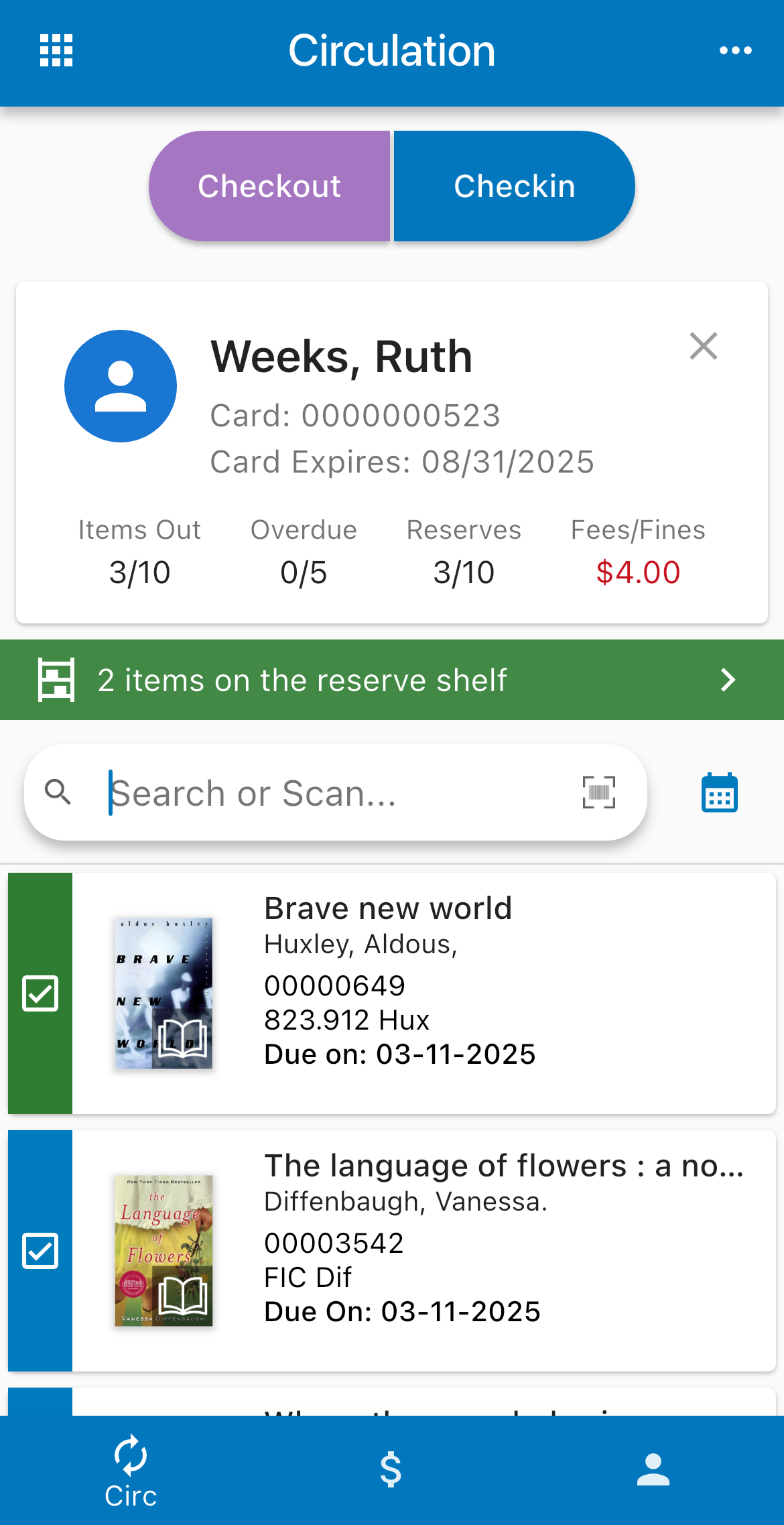
Device Camera - Tap the barcode icon in the search field, and capture the patron barcode. Once the patron is loaded, tap the barcode icon again, and capture the item barcode.

Search - First, select Find a patron, and enter a name. Next, on your mobile device, tap in the search field; on a desktop, click the magnifying glass, and then enter a holdings barcode, title, or keyword to find your items.
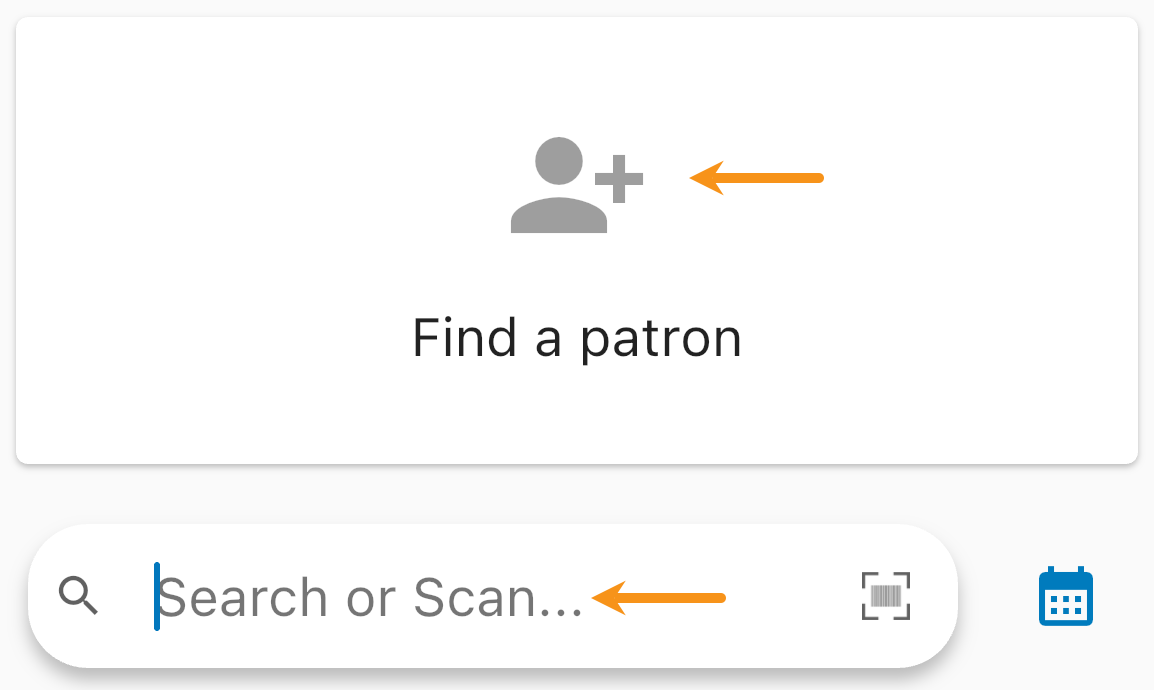
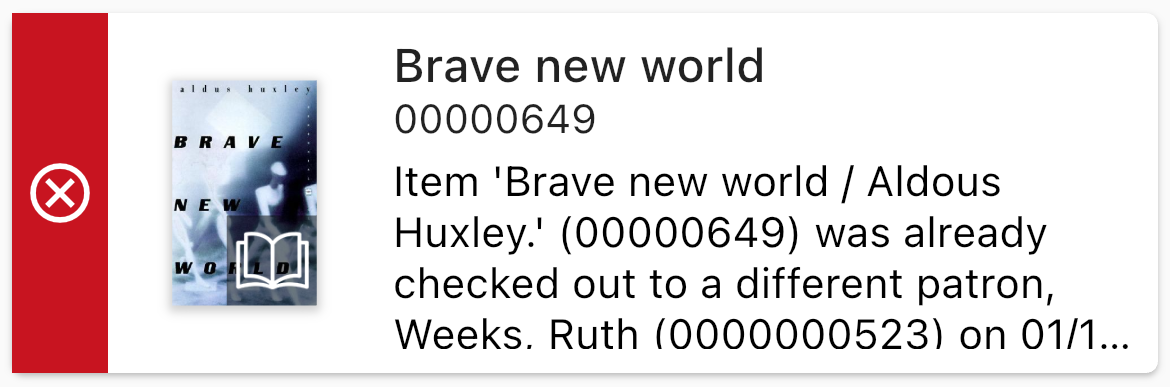
Items display along with their status; if you receive an error, you can tap the item and override the issue (requires the Override Circulation Rules permission in Atriuum).

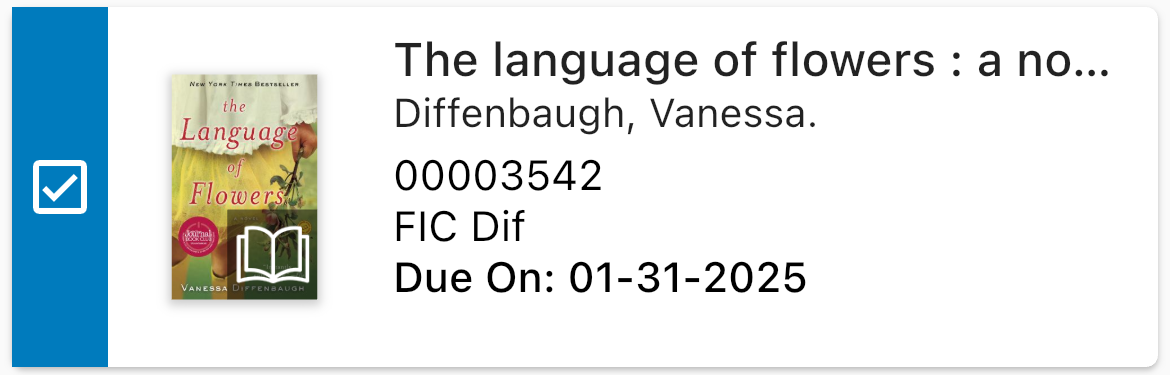
Check In
Open the Circ screen.
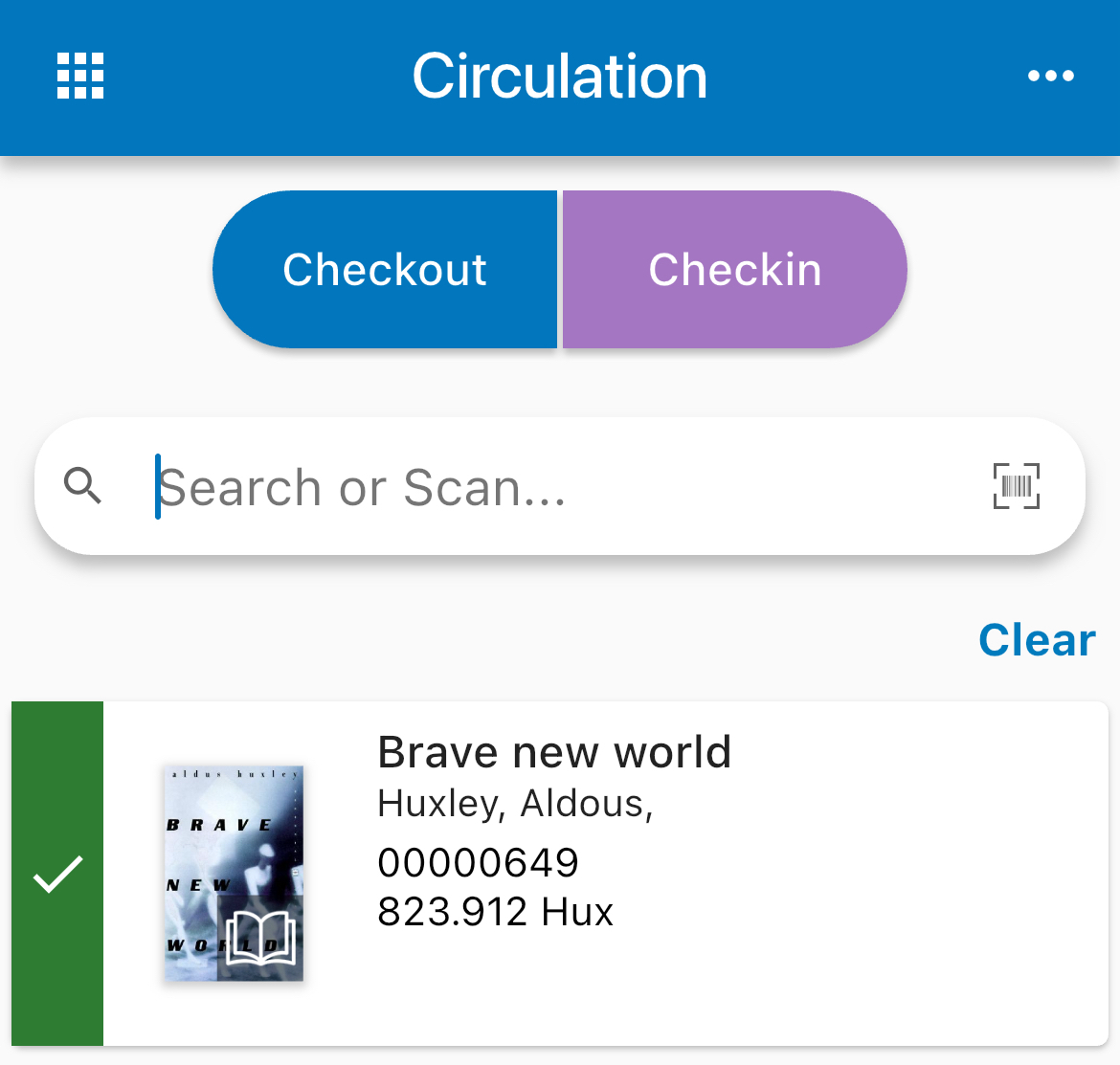
Use one of the following methods to check in items:
Scanner - Simply scan the item barcode.
Device Camera - Tap the barcode icon in the search field, and capture the item barcode.
Search - On your mobile device, tap in the search field; on a desktop, click the magnifying glass. Enter a holdings barcode.
Renew
Open the Circ screen.
Use one of the following methods to load a patron:
Scanner - Scan the patron barcode.
Device Camera - Tap the barcode icon in the search field, and capture the patron barcode.
Search - Select Find a patron, and enter a name.
Tap an item from the patron's list.
Tap Renew.